Enet Wifi Adapter for BMW F/G/I Series Obd2 Wifi CarPlay Compatible for BimmerCode,Bootmod3,MHD Work with iOS,Android Blackbox Automotive Diagnostics

Enet Wifi Adapter for BMW F/G/I Series Obd2 Wifi CarPlay Compatible for BimmerCode,Bootmod3,MHD Work with iOS,Android

China Mainland / English
セール価格  $112.12 通常価格 $146.12
商品情報にスキップ
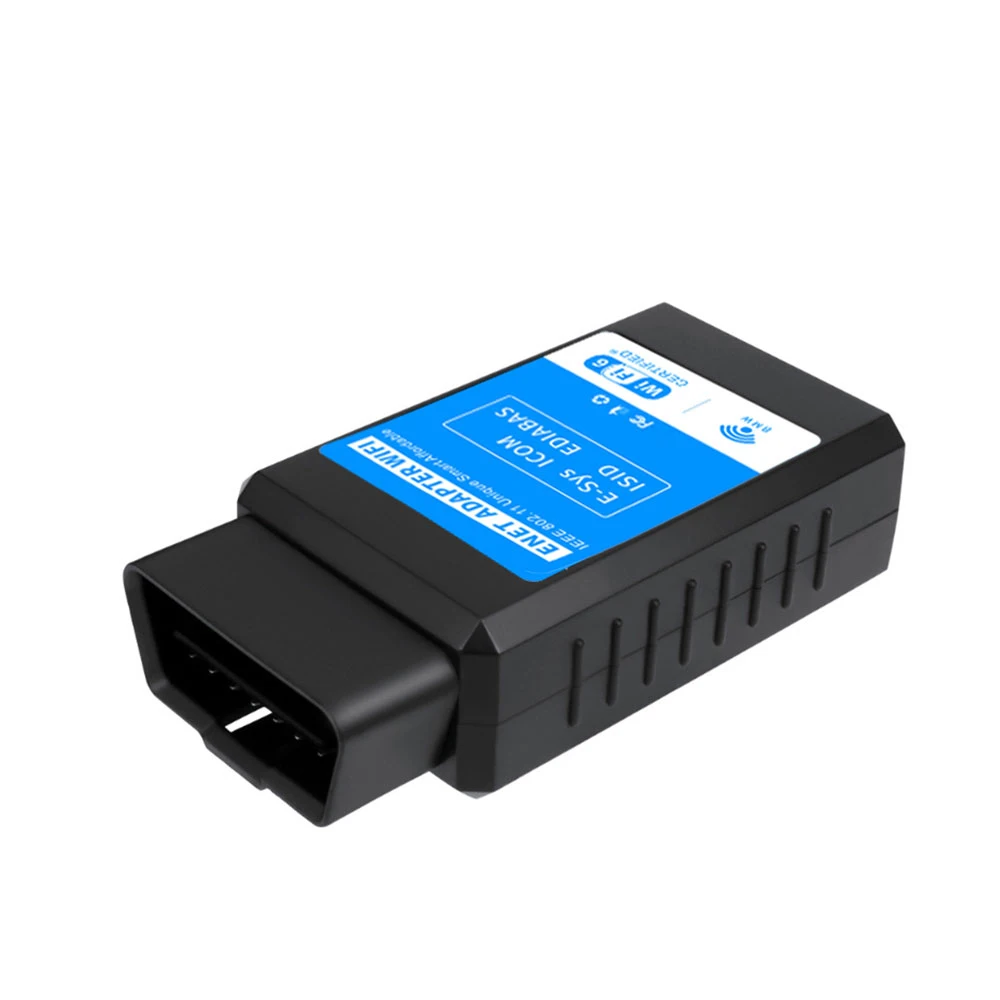
Enet Wifi Adapter for BMW F/G/I Series Obd2 Wifi CarPlay Compatible for BimmerCode,Bootmod3,MHD Work with iOS,Android Blackbox Automotive Diagnostics

Enet Wifi Adapter for BMW F/G/I Series Obd2 Wifi CarPlay Compatible for BimmerCode,Bootmod3,MHD Work with iOS,Android

セール価格  $112.12 通常価格 $146.12
Ships FromChina Mainland
LanguageEnglish

SPECIFICATIONS

Brand Name: AD

Choice: yes

Electronic: No

High-concerned chemical: None

Is Batteries Included: no

Item Weight: 0.2

Material: plastic

Model Name: enet wifi adapter

Origin: Mainland China

Use: Not Telecommunication

Voltage: 12V

Wireless Support: No

semi_Choice: yes

Note:the link does not include Software,default compatible E-SYS ICOM,please contact us if you want to unlock more function.

Why buy it from us :
1:The BMW ENET WiFi Adapter is a cutting-edge diagnostic tool designed for use with BMW vehicles. This device allows you to connect wirelessly to your vehicle's electronic control unit (ECU), providing you with real-time access to critical data about your BMW's performance and condition.


Unlike traditional OBDII scanners, which are limited in their capabilities, the BMW ENET WiFi Adapter offers advanced diagnostics and coding functions that allow you to customize your BMW to your exact specifications. With this powerful tool, you can perform in-depth analysis of your vehicle's systems, diagnose and clear fault codes, and even enable hidden features that are not available through the standard BMW interface.


What sets the ENET WiFi Adapter apart from other diagnostic tools on the market is its easy-to-use interface and wireless connectivity. Simply plug the adapter into your BMW's OBD-II port, connect to it using your smartphone or tablet, and start diagnosing and coding your BMW immediately. Plus, with its compact design and durable construction, the BMW ENET WiFi Adapter is built to withstand the rigors of everyday use and provide you with years of reliable service.


2:Compatible Apps (Requires separate download from Google Play Store or Apple App Store, some may require purchase):

- BootMod3(iOS & Android) : The most Widely Adpoted flash turning platform for BMW F and G series vehicles and the new A90/A91 Toyota Supra. Allows end users to unleash the full performance potential by programming the factory engine contol unit(ECU/DME)and transmission(TCU,where applicable) over the OBD diagnostic port.

- Bimmer Utility (PC & Mobile Side): Fit for BMW and MINI owners with F,G and I series vehicles. It empowers users to code any car parameter and edit FA or VO code modules,all based on the latest date used by professional coders.(Fit for BMW F and G series Motorcycle)

- BimmerCode (iOS & Android .Will not work if you are on a beta version of iOS) : Fit for BMW,MINI and Toyota Supra.Coding and discover hidden features and customize your vehicle according to your personal preferences.

- BimmerLink (iOS & Android): Fit for BMW and MINI.Read trouble codes or display sensor values in realtime, check the current state of the DPF and register a new battery after replacement.

- xDelete (PC & iOS & Android): Fit for BMW F and G series vehicles from 2004-2021 years. First tool to customize your xDrive System.

- xHP Flashtool (PC & iOS & Android): Fit for BMW F Series (NOT be compatible with G Series BMW and A90 Supra) .Worldwide first and complete Tuning solution for BMW with ZF6HP, ZF8HP Automatic or 7-Speed DCT Transmission. It put's the power to fully customize your automatic transmission at your hands.

- MHD (iOS & Android):Fit for BMW F and G Series(Not including gearbox) Flash tuning app capable of complete DME remapping while retaining all OEM safety mechanisms.

- DEEP OBD (Google Play): Fit for BMW F Series. Used ECU files for OBD communication.

- ISTA/ESYS/INPA...

And Many other apps.

Please note, some phones do NOT give you the ability to utilize full functionality of the Enet Wifi Adapter and are forced to offline mode only. iPhones do not have this issue, but select Android devices may be this way. For example, if you have a Goog-le Pixel phone, you will have limitations, due to the phone’s software.
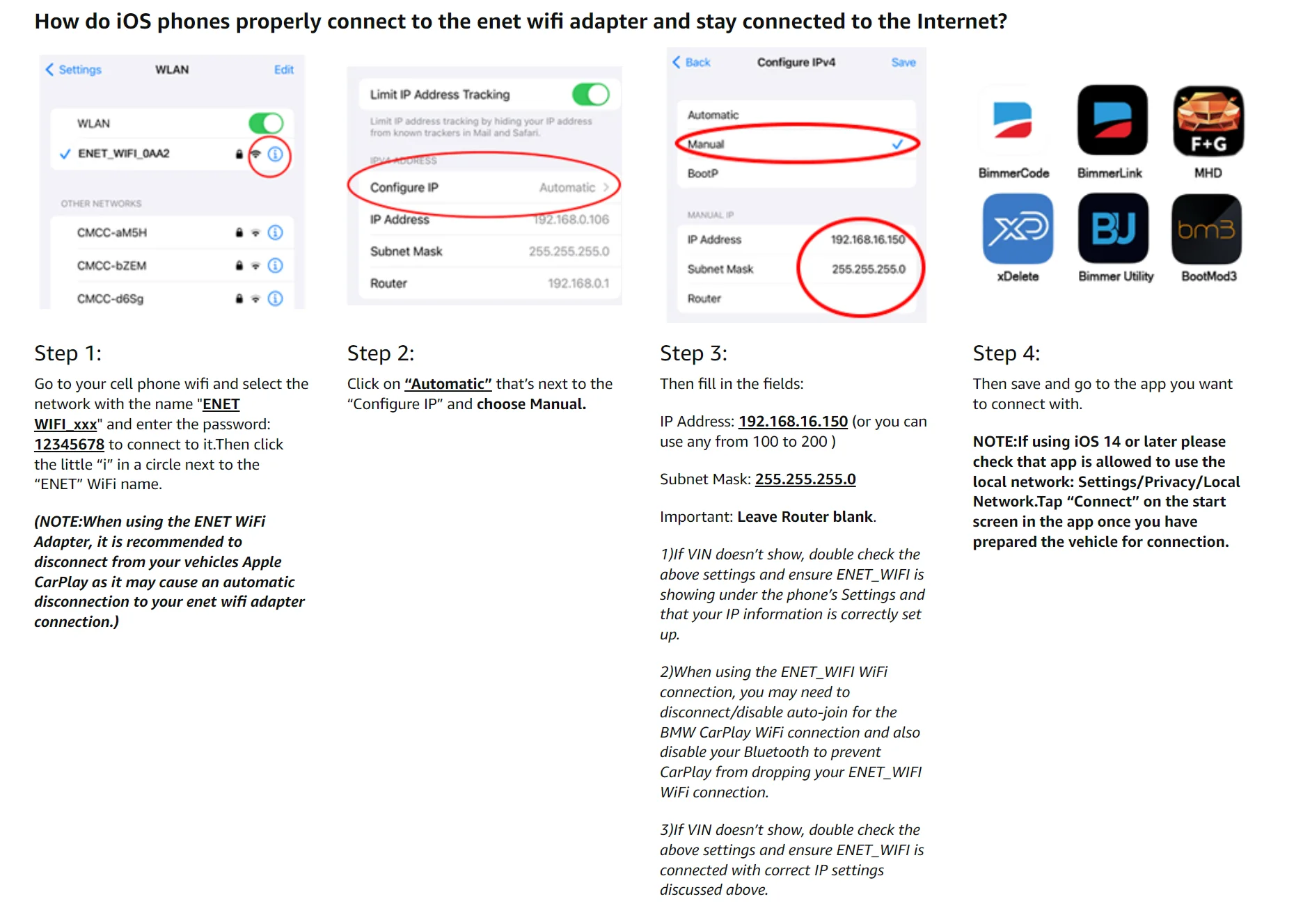
  • ENET WIFI ADAPTER CONNECTION - WIFI SETTINGS (All Android versions)


In case you have an older device that is running an earlier version of Android than 6.0.1, or you’d simply like to use a wireless connection with your OBD WiFi Adapter, follow these instructions to set up your WiFi settings on your phone. This is a one-time configuration:

When using the OBD2 WiFi Adapter, it is recommended to disconnect from your vehicles from interfering apps or services as it may cause an automatic disconnection to your OBD Wi-Fi Adapter connection.

Turn off any wifi settings that can interfere with the connection:

  1. Go to Settings > Connections > Wi-Fi > Advanced Settings;

  2. Disable the following, if present:


  • Sync with Samsung Cloud;

  • Network Notification;

  • Hotspot 2.0

  1. Plug in the ENET WiFi Adapter.

  2. Wait for the ENET_WIFI Wifi network to show up among your available networks, but DO NOT connect to it right away! Click on the ‘gear’ icon on the right and configure its IP settings first. If you skip this part and click on it to connect it will wait a long time to try and connect. If this is what you’ve done, press and hold on the ENET_WIFI WiFi network and click on the ‘Forget network’ menu so you can do it again.

  3. To configure the BM3_NET WiFi network and change from DHCP to Static IP and enter the following IP network information:

  • IP address: 192.168.16.107

  • Gateway: 0.0.0.0

  • This default alternative has also worked on Samsung S20/S22 Ultra Android 10: 192.168.16.107 (Or IP of your exact adapter)

  • DNS (if showing): 0.0.0.0

  • Subnet (if showing): 255.255.0.0

  • Network Prefix Length (if showing): 24

  • Click on ‘Save’

Now you can connect to network:

  1. Name of WiFi Network (SSID): ENET_WIFI

  2. Password: 12345678


At this point, your Android device is configured for Wi-Fi with the vehicle. Go back to the bootmod3 app(or many other apps) and you should see the vehicle’s VIN showing.

If VIN doesn’t show, double-check the connection to the ENET_WIFI WiFi network and IP settings are correct.

  • ENET Cable Connection - Ethernet Settings(IOS Version,For example bootmod3)

Thee are no required settings to get this going on your phone. After plugging the ENET cable in and waiting 20-30 seconds the app will show your vehicle’s VIN.

When using the Direct ENET cable connection, it is recommended to turn off WiFi and Bluetooth on your iOS device due to CarPlay. CarPlay may cause disconnects to your ENET connection.

To speed up iOS vehicle detection, you can enter the following Ethernet settings on your iOS device:

ENET cable MUST be connected to your iOS device to see the Ethernet menu under Settings and configure them.

  1. Go to Settings——Ethernet ——USB 10/100 LAN ——Configure IP: Change this from Automatic to Manual and enter the following network settings:

  • IP: 169.254.250.250

  • Subnet Mask: 255.255.0.0

  • Router: (leave empty)

Some rebranded generic ENET WiFi adapters alter the vehicle’s IP configuration from default. These settings will reset after the vehicle sleeps for at least 20-30 minutes. To avoid waiting that long and have it reset vehicle’s network configuration, disconnect the ground wire on the vehicle’s battery for 3 minutes and reconnect it.

  • ENET Cable Connection - Ethernet Settings (Android 11 and up Version,For example bootmod3)

The most recent update to Android 11 One UI 3.0, dubbed "Security Update", was released on January 16, 2021, and, it's now easier to connect with Android and keep your internet/mobile data connection alive! Android 11 has a new Ethernet connection option called "Ethernet Tethering”.

To get started with Android 11, make sure the latest update has been installed.

  • Connect the USB-Ethernet adapter to your Android 11 device.

  • Go into Settings——Connections——Mobile Hotspot and Tethering——Here you enable the Ethernet Tethering option (see screenshots).

1)There's still a bug on Android when you tap this and it turns off once you tap it. Just make sure it STAYS ON before you come back to the bootmod3 app.

2)PLEASE NOTE: The first time after the Android 11 update, the Android Settings app can crash. In this case, the phone has to be restarted. Then try again.

Here are the Ethernet settings to configure on your Android 6.0.1 - Android 10 device for proper connectivity. This is a one-time configuration:

ENET cable MUST be connected to your Android device to see the Ethernet menu under settings and configure them.

Ensure that the Ethernet setting shows DISCONNECTED. If showing connected, you won’t be able to update the settings below until you tap the toggle button to disconnect.

  1. Go to Settings——Connections ——More connection settings—— Ethernet ——Configure Ethernet device

  2. Change from DHCP to Static IP (click on Static IP)

  3. Enter the following IP settings:

  • IP address: 169.254.250.250

  • Netmask: 255.255.0.0

  • DNS address: 0.0.0.0

  • Default gateway: 0.0.0.0

4. Hit ‘Save’ at the bottom.

5. When back on the Ethernet screen, toggle the Ethernet button to the right (to connect).

At this point, your Android device is configured for Ethernet with the vehicle. Go back to the bootmod3 app and you should see the vehicle’s VIN showing.These settings DO NOT seem work on Android 11 as tested on Samsung S20 Ultra running latest Android update at this time (Feb 2nd 2021). For Android 11 Ethernet-USB connectivity see section above.

Q&A

Q: Will this work with LAN cable as well?
A: Yes it will.

Q: Will this work with 3rd party APP?
A: Yes, we are open for 3rd party APP connection.

Q: Any suggested of 3rd party APP to work with?
A: Our ENET Wifi Adapter are compatible with your favorite other apps - BootMod3,BimmerCode (Will not work if you are on a beta version of iOS),BimmerLink,xDelete and many more.
こちらもご覧ください